
Wherefore art thou, Spriggy API?
Spriggy is an app & bankcard for helping kids with their pocket money. No longer do you need to worry about finding coins to give them from under the sofa; with Spriggy you can send them money directly (via the app), and then they can use it to buy things on their managed card. The app also has a handy chores mechanism, which allows you to set up tasks for your kids to complete. The biggest problem with Spriggy, however, is that when you want to see how much money your kids have, you have to go into the app and look at it. Or, in the case of kids without phones, they can just ask you. Repeatedly.
As you’re aware, I’ve been playing around with a family display of sorts, which is a great way of showing what’s happening in the household, in a more passive manner. The perfect place to add the kids’ current pocket money balances. Hoping that Spriggy had an OpenBanking API, I jumped on their website to check, but alas, not currently enrolled, but also, no website access. App only.
Fast-forward to recently, and I bought myself one of these Waveshare 2.16 inch displays after inspiration from this excellent article. Initially, I was interested in-building a small podcasting interface that the kids could use to control their listening, but I switched gears to see if I could display their Spriggy balances instead.
Spriggy’s API
The first step was working out how the Spriggy app works. Initially I tried my hand at decompling the Android binary for the application, but I couldn’t get a good decompilation of it. I’m not sure you can even decompile an iOS app. Instead of decompiling the iOS app, I decided to try and intercept the network traffic used by the application, by running the mobile app on my Mac laptop, and then using the venerable Charles Proxy to intercept the network traffic (a very good piece of software). Vola! All the network call I was interested in.
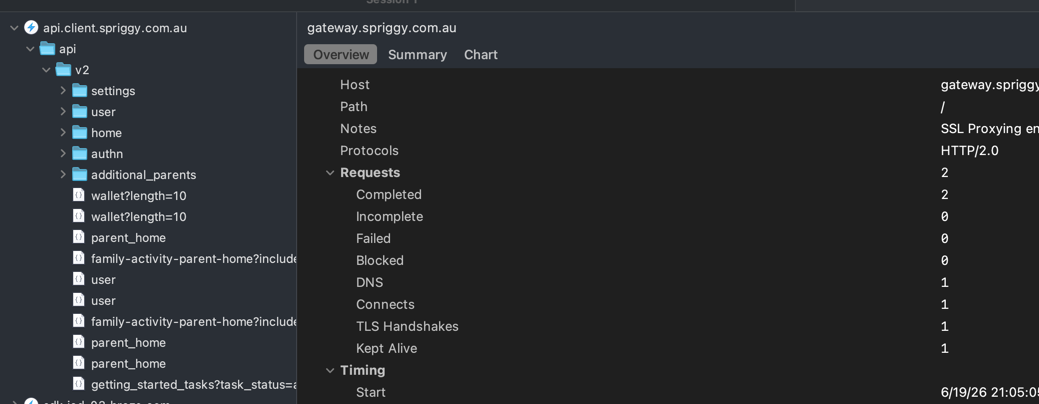
The Spriggy API is REST based, with a relatively secure looking implementation. Taking the network traffic I intercepted, I was able to work out the API endpoints and their parameters.
Spriggy API Prompt
This is my attempt at a Claude task prompt, to build out the authentication mechanism in NodeJS. A small CLI tool, to first authenticate with the Spriggy API, and then refresh the balance on a 5 minute loop.
We’re building a small application to retrieve balances from the Spriggy API. To start, we need to authenticate with the Spriggy API.
Auth Mechanism
The auth mechanism should be triggered by an
authmode on the CLI,The first call looks like this.
curl -H "Host: authn.spriggy.com.au" \
-H "content-type: application/x-www-form-urlencoded" \
-H "accept: application/json, text/plain, */*" \
-H "dpop: <DPOP>" -H "priority: u=3, i" -H "accept-language: en-AU,en;q=0.9" \
-H "user-agent: Spriggy/11111111111 CFNetwork/3860.300.31 Darwin/25.2.0" \
--data-binary "client_id=pm-mobile&phone_number=<YOUR_PHONE NUMBER>" \
"https://authn.spriggy.com.au/oauth2/authorize-challenge"
Fields that are important:
- dpop: This is the proof of possession token. Look at this website for some inspiration as to how to generate and store this. https://medium.com/@ahsanmubariz/securing-your-web-authentication-a-practical-guide-to-dpop-in-web-apps-07b20c90c1d9. Persist the key information to a local file.
- phone_number: Your phone number
This call will return something similar to the following
{
  "error": "insufficient_authorization",
  "error_description": "The presented authorization is insufficient, and the authorization server is requesting the client take additional steps to complete the authorization.",
  "auth_session": "xxxxxx",
  "additional_authorization_required": ["mobile_otp"]
}
Once this call is made, we need a user prompt to that the user enters the OTP that was sent to their phone.
curl -H "Host: authn.spriggy.com.au" -H "content-type: application/x-www-form-urlencoded" \
-H "accept: application/json, text/plain, */*" \
-H "dpop: <DPDOP>" -H "priority: u=3, i" \
-H "accept-language: en-AU,en;q=0.9" H "user-agent: Spriggy/11111111111 CFNetwork/3860.300.31 Darwin/25.2.0" \
--data-binary "client_id=pm-mobile&otp=<OTP>&auth_session=<AUTH_SESSION>>&code_challenge=<CHALLENGE_CODE>&code_challenge_method=S256" "https://authn.spriggy.com.au/oauth2/authorize-challenge"
Fields that are important are the:
which should be the OTP that was sent to the user’s phone. - <AUTH_SESSION> which is the auth session that was returned in the first call.
- <CHALLENGE_CODE> . Generate a code_verifier — a high-entropy random string, 43–128 chars from the unreserved set [A-Z] [a-z] [0-9] - . _ ~. In practice: take 32 random bytes and base64url-encode them (no padding) → 43 chars. Hash it — SHA‑256 the ASCII bytes of the verifier, then base64url-encode the 32-byte digest without padding. Persist the random string + the hashed value to a local file. Read https://www.scalekit.com/blog/pkce-developers-guide-secure-oauth-flows for details.
This will return something similar to the following:
{
  "code": "xxxxxxxxxx"
}
Which contains the <SERVER_CODE>
Finally, make the following all:
curl -H "Host: authn.spriggy.com.au"  \
-H "content-type: application/x-www-form-urlencoded" \
-H "accept: application/json, text/plain, */*" \
-H "dpop: <DPOP>" -H "priority: u=3, i" \
-H "accept-language: en-AU,en;q=0.9" \
-H "user-agent: Spriggy/11111111111 CFNetwork/3860.300.31 Darwin/25.2.0" \
--data-binary "grant_type=authorization_code&client_id=pm-mobile&code_verifier=<CHALLENGE_CODE_VERIFIER>&code=<SERVER_CODE>" "https://authn.spriggy.com.au/oauth2/token"
Fields that are important are the:
- <SERVER_CODE> verifier code from previous call.
- <CHALLENGE_CODE_VERIFIER> which is the code_verifier that was generated in the previous call.
This will return:
{
  "token_type": "Bearer",
  "access_token": "..",
  "expires_in": 60,
  "refresh_token": ""
}
Persist both the access_token and the refresh_token.
Token Refresh
The access_token is short-lived (
expires_inis ~60 seconds), so before any standard operation we refresh it using the persisted refresh_token. This uses the standard OAuth2 refresh grant against the same token endpoint, with a fresh DPoP proof bound to that URL.curl -H "Host: authn.spriggy.com.au" \ -H "content-type: application/x-www-form-urlencoded" \ -H "accept: application/json, text/plain, */*" \ -H "dpop: <DPOP>" -H "priority: u=3, i" \ -H "accept-language: en-AU,en;q=0.9" \ -H "user-agent: Spriggy/11111111111 CFNetwork/3860.300.31 Darwin/25.2.0" \ --data-binary "grant_type=refresh_token&client_id=pm-mobile&refresh_token=<REFRESH_TOKEN>" \ "https://authn.spriggy.com.au/oauth2/token"Fields that are important are the:
generated DPoP token (htm=POST, htu=…/oauth2/token). - <REFRESH_TOKEN> the refresh_token from
data/tokens.json.This returns the same shape as the token exchange (a fresh
access_token,expires_in, andtoken_type). The refresh_token may be rotated — if a newrefresh_tokenis returned, persist it; otherwise retain the existing one. Re-persist the updated tokens todata/tokens.json.Standard Operation
The application runs in a loop (configurable, but defaulting to 5 minute delays).
Within the loop, the following.
Using the
data/tokens.jsonfile, and thedpop-key.jsonon startup, make the following request to get an API token.curl -H "Host: api.client.spriggy.com.au" \ -H "dpop: <DPOP>" -H "priority: u=3, i" -H "accept-language: en-AU,en;q=0.9" -H "user-agent: Spriggy/11111111111 CFNetwork/3860.300.31 Darwin/25.2.0" \ -H "x-app-version: 5.20.6" --data-binary \ "{\"authn_token\":"<ACCESS_TOKEN>"}" \ "https://api.client.spriggy.com.au/api/v2/authn/exchange-token-during-login"Fields that are important are the:
- <ACCESS_TOKEN> from the
data/tokens.json.generated DPOP token. This will then return:
{
  "flow_type": "existing_user",
  "existing_user": {
  	"user_type": "parent",
  	"token": "<GOES HERE>"
  },
  "existing_user_sprk": null,
  "new_user": null,
  "new_apu_user": null,
  "new_user_webview": null,
  "new_teen_invited_parent_user": null
}
The
tokenis the API token that we need to use for all future requests.Once you have a token, call the following endpoint to get the user’s balances.
curl -H "Host: api.client.spriggy.com.au" -H "accept: application/json" \
-H "accept-language: en-AU,en;q=0.9" -H "x-app-version: 5.20.6" \
-H "authorization: Basic <AUTH>" -H \
-H "user-agent: Spriggy/1111111 CFNetwork/3860.300.31 Darwin/25.2.0" \
-H "priority: u=3, i" "https://api.client.spriggy.com.au/api/v2/parent_home"
Supply the token from above within the authorisation field. The response looks like this:
{
 "payload": {
   "parent": {
     "parent_wallet": {
        "id": 1000001,
        "balance": "35.30"
      },
      "email": "parent@example.com",
      "mobile": "0400000000",
      "mobile_verified": true,
      "id": 1000000,
      "suid": "00000000-0000-0000-0000-000000000001",
      "first_name": "Alex",
      "last_name": "Smith",
      "spriggy_plus_status": "Not Spriggy Plus",
      "real_time_spending_notifications_enabled": true,
      "profile_picture": {
        "url": null
      },
      "children": [{
        "id": 2000001,
        "suid": "00000000-0000-0000-0000-000000000002",
        "first_name": "Child1",
        "last_name": "Smith",
        "username": "child1smith",
        "dob": "2020-01-01",
        "nstatus": "CONFIRMED",
        "is_additional": true,
        "display_as_additional": true,
        "profile_picture": {
          "url": null
        },
        "contribution_link": null,
        "card": {
          "balance": "8.00",
          "id": 3000001,
          "image": {
            "url": "https://assets.example.com/cards/card-a.png",
            "url_2x": "https://assets.example.com/cards/card-a@2x.png",
            "url_3x": "https://assets.example.com/cards/card-a@3x.png",
            "url_4x": "https://assets.example.com/cards/card-a@4x.png"
          },
          "is_pin_not_set": false,
          "is_created": false,
          "is_locked": false,
          "is_activated": true,
          "can_debit_account": false,
          "expiry_text_colour": null,
          "replacement_ordered": false,
          "is_expiring": false
        },
        "goals": [],
        "savings": {
          "id": 3000000,
          "balance": "0.00",
          "can_debit_account": false
        },
        "pocket_money": null,
        "is_teens_app_member": false
      }, {
        "id": 2000002,
        "suid": "00000000-0000-0000-0000-000000000003",
        "first_name": "Child2",
        "last_name": "Smith",
        "username": "child2smith",
        "dob": "2016-01-01",
        "nstatus": "CONFIRMED",
        "is_additional": true,
        "display_as_additional": true,
        "profile_picture": {
          "url": "https://content.example.com/user/0000001.jpg"
        },
        "contribution_link": null,
        "card": {
          "balance": "28.28",
          "id": 3000003,
          "image": {
            "url": "https://assets.example.com/cards/card-b_1x.png",
            "url_2x": "https://assets.example.com/cards/card-b_2x.png",
            "url_3x": "https://assets.example.com/cards/card-b_3x.png",
            "url_4x": "https://assets.example.com/cards/card-b_4x.png"
          },
          "is_pin_not_set": false,
          "is_created": false,
          "is_locked": false,
          "is_activated": true,
          "can_debit_account": false,
          "expiry_text_colour": null,
          "replacement_ordered": false,
          "is_expiring": false
        },
        "goals": [{
          "balance": "0.00",
          "target": "2.00",
          "name": "Goal A",
          "id": 4000001,
          "image": {
            "url": "https://content.example.com/account/0000001.jpg"
          },
          "can_debit_account": false
        }, {
          "balance": "0.00",
          "target": "10.00",
          "name": "Goal B",
          "id": 4000000,
          "image": {
            "url": null
          },
          "can_debit_account": false
        }],
        "savings": {
          "id": 3000002,
          "balance": "1.00",
          "can_debit_account": false
        },
        "pocket_money": null,
        "is_teens_app_member": false
      }],
      "parent_friendly_name": null,
      "kyc": {
        "status": "unverified",
        "required": false
      },
      "analytics": {
        "id": "00000000-0000-0000-0000-00000000000a",
        "intercom": {
          "hash_iOS": "0000000000000000000000000000000000000000000000000000000000000000",
          "hash_android": "1111111111111111111111111111111111111111111111111111111111111111"
        }
      },
      "temp_ban": false,
      "special_events_enabled": false,
      "activationTileContent": "comingSoon"
    },
    "teens_app_onboarding_url": "https://parent.example.com/app-onboarding",
    "can_view_nab_comarketing": false,
    "is_next_child_eligible_for_nab_campaign": false,
    "is_eligible_for_nab_campaign": false,
    "graduation_flow": [],
    "card_expiry": {
      "tile": null,
      "children": []
    },
    "referral": {
    },
    "billing": {

    },
    "topups_blocked_screen": {
    },
    "sprk_onboarding_tile_state": {
    }
  }
}
For each child, extract the savings+card balance, and output the child’s first name, and total balance.
Publishing Balance State
Once I have refreshed a balance, I want to push the balance state to an MQTT topic,
spriggy/balancesas a JSON object. The JSON should be in this format:{ "children" : [ { "name": "Bob", "balance": "$8.00" } ] }The MQTT server is located at 192.168.1.2.
With this relatively straightforward prompt, I was able to authenticate with the API, and start publishing balance data to the MQTT broker. My data was finally free of the app!
⚠️ Just a word of warning, the API doesn’t like it if you attempt to use a different/old refresh token accidentally. You’ll be forced to re-authenticate.
Architecture
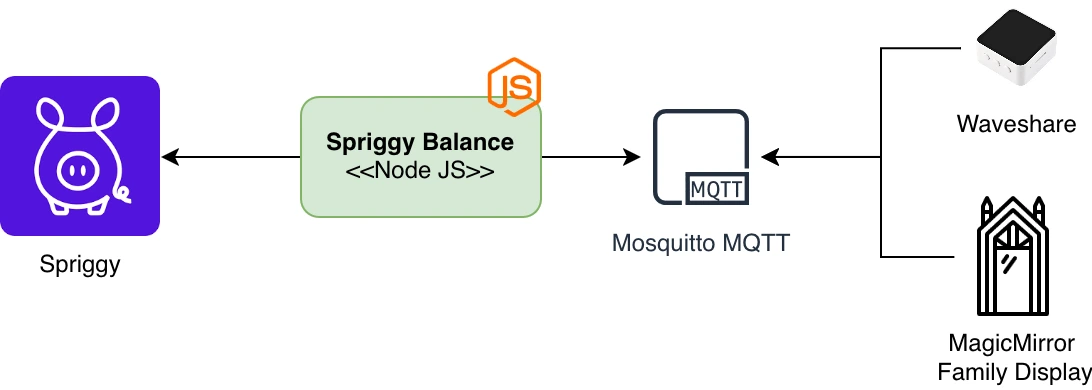 A relatively simple application that I run on my homeserver, within a docker container.
- Spriggy Balance: Small NodeJS application written with the above prompt.
- MQTT Broker: Mosquitto based MQTT broker, with persistent message queue.
- MagicMirror Family Display: My MagicMirror instance, running on a large display.
MagicMirror
 I’ve been using my MagicMirror instance for a
while, and it was the perfect
place to surface the balance data. It allows the kids to see what their balance is (without bugging us),
and also makes it much more visible in terms of their mind. Without this passive visibility, their pocket money
is generally not something they are thinking about regularly. An unintended side effect is that they are also
now competing around completing chores/tasks, to try and boost their pocket money in relation to the other kids.
Nothing like a bit of healthy competition.
I’ve been using my MagicMirror instance for a
while, and it was the perfect
place to surface the balance data. It allows the kids to see what their balance is (without bugging us),
and also makes it much more visible in terms of their mind. Without this passive visibility, their pocket money
is generally not something they are thinking about regularly. An unintended side effect is that they are also
now competing around completing chores/tasks, to try and boost their pocket money in relation to the other kids.
Nothing like a bit of healthy competition.
The Magic Mirror plugin structure is a bit strange, but if you follow something like
this guide,
you can build out a plugin which renders on the device. The main thing to remember is that the majority of the code
runs on the panel itself, and then communication between the JS within the Browser, to the code running on the
MagicMirror server component, is via a Socket connection, with events triggered from either side. The
node_helper side of my plugin, for example, looks similar to the following:
const NodeHelper = require("node_helper")
const mqtt = require("mqtt")

module.exports = NodeHelper.create({

  mqttBroker: "mqtt://192.168.1.2:1883",
  mqttTopic: "spriggy/balances",
  mqttClient: null,
  latestData: null,

  /**
   * Connect to the MQTT broker on startup and subscribe to the Spriggy topic.
   * Every message received on that topic is forwarded to the front-end
   * via a "SPRIGGY_DATA" socket notification.
   */
  start() {
    console.log(`MMM-Spriggy: connecting to MQTT broker ${this.mqttBroker}`)
    const client = mqtt.connect(this.mqttBroker)
    this.mqttClient = client

    client.on("connect", () => {
      client.subscribe(this.mqttTopic, (err) => {
        if (err) {
          console.error(`MMM-Spriggy: failed to subscribe to ${this.mqttTopic}`, err)
          return
        }
        console.log(`MMM-Spriggy: subscribed to ${this.mqttTopic}`)
      })
    })

    client.on("message", (topic, message) => {
      console.log(`MMM-Spriggy: message on "${topic}": ${message.toString()}`)

      if (topic !== this.mqttTopic) {
        return
      }

      let payload
      try {
        payload = JSON.parse(message.toString())
      } catch {
        payload = message.toString()
      }

      console.log("MMM-Spriggy: parsed payload", payload)
      this.latestData = payload
      this.sendSocketNotification("SPRIGGY_DATA", payload)
    })

    client.on("error", (err) => {
      console.error("MMM-Spriggy: MQTT client error", err)
    })
  },

  /**
   * Handle requests from the front-end module. When a module instance
   * starts up it asks for the latest balances, which may have arrived
   * (as a retained MQTT message) before the browser was connected.
   *
   * @param {string} notification - The notification identifier.
   */
  socketNotificationReceived(notification) {
    if (notification === "SPRIGGY_INIT" && this.latestData !== null) {
      this.sendSocketNotification("SPRIGGY_DATA", this.latestData)
    }
  },

  /**
   * Disconnect from the MQTT broker when the helper shuts down.
   */
  stop() {
    if (this.mqttClient) {
      this.mqttClient.end()
      this.mqttClient = null
    }
  },
})
WaveShare
Back to the WaveShare device, it supports LVGL to render UI components relatively easily. In addition, it also has Wifi the ability to connect to MQTT, which works perfectly for this kind of demo. I’m no embedded developer, but using Claude Code allows you to do some pretty magical stuff, particularly for small PoC tools.
#include <Arduino.h>
#include <WiFi.h>
#include <PubSubClient.h>
#include "lvgl.h"
#include "bsp_lvgl_port.h"
#include "./src/port_bsp/i2c_bsp.h"
#include "./src/port_bsp/axp2101_bsp.h"

/* ------------------------------------------------------------------ */
/*  Configuration                                                      */
/* ------------------------------------------------------------------ */
// TODO: fill in your network credentials before flashing.
#define WIFI_SSID      "GOES HERE"
#define WIFI_PASSWORD  "GOES HERE"

#define MQTT_BROKER    "192.168.1.2"
#define MQTT_PORT      1883
#define MQTT_TOPIC     "spriggy/balances"
#define MQTT_CLIENT_ID "spriggyBalanceDisplay"

#define SCREEN_CYCLE_MS      5000   // cycle between children every 5s
#define MQTT_RECONNECT_MS    10000  // retry the broker every 10s when down

#define MAX_CHILDREN  8
#define NAME_LEN      32
#define BALANCE_LEN   16

/* ------------------------------------------------------------------ */
/*  State                                                              */
/* ------------------------------------------------------------------ */
I2cMasterBus I2cMasterBus_(GPIO_NUM_7, GPIO_NUM_8, I2C_NUM_0);

WiFiClient wifiClient;
PubSubClient mqtt(wifiClient);

struct ChildBalance {
  char name[NAME_LEN];
  char balance[BALANCE_LEN];
};

static ChildBalance children[MAX_CHILDREN];
static int  childCount   = 0;
static bool needsRebuild = false;   // set by MQTT callback, consumed in loop()

// One LVGL screen per child, plus its two labels so we can reposition/recolour
// them on every cycle (OLED burn-in mitigation).
static lv_obj_t *screens[MAX_CHILDREN]       = { NULL };
static lv_obj_t *balanceLabels[MAX_CHILDREN] = { NULL };
static lv_obj_t *nameLabels[MAX_CHILDREN]    = { NULL };
static int  builtScreenCount = 0;
static int  currentScreen    = 0;
static uint32_t lastSwitchMs = 0;
static uint32_t lastMqttTryMs = 0;

// Set from the LVGL task when the screen is tapped; consumed in loop().
static volatile bool advanceRequested = false;

/* ------------------------------------------------------------------ */
/*  OLED burn-in mitigation                                            */
/*  On every cycle we nudge the labels by a few pixels and rotate the  */
/*  balance through a few near-white tints, so no pixel/subpixel stays  */
/*  lit in the same spot indefinitely.                                  */
/* ------------------------------------------------------------------ */
struct PixelOffset { int8_t x; int8_t y; };
static const PixelOffset kShiftOffsets[] = {
  { 0, 0 }, { 10, 6 }, { -8, 10 }, { 8, -8 }, { -10, -6 }, { 6, 8 }
};
static const int kNumShifts = sizeof(kShiftOffsets) / sizeof(kShiftOffsets[0]);

static const uint32_t kBalanceTints[] = {
  0xFFFFFF, 0xEFEFFF, 0xFFEFEF, 0xEFFFEF
};
static const int kNumTints = sizeof(kBalanceTints) / sizeof(kBalanceTints[0]);

static int shiftIndex = 0;

/* ------------------------------------------------------------------ */
/*  JSON parsing                                                       */
/*  Payload is a fixed shape:                                          */
/*  {"children":[{"name":"Foo","balance":"$8.00"}, ...]}               */
/*  Small/simple enough to parse without a JSON library.               */
/* ------------------------------------------------------------------ */
// Copies the next quoted string after `start` into `out`. `start` should
// point at (or just before) the key; we skip to ':' then the opening quote.
// Returns a pointer just past the closing quote, or NULL on malformed input.
static const char *readQuotedValue(const char *start, char *out, size_t outSize) {
  const char *p = strchr(start, ':');
  if (!p) return NULL;
  p = strchr(p, '"');
  if (!p) return NULL;
  p++;  // step past opening quote
  size_t i = 0;
  while (*p && *p != '"' && i < outSize - 1) {
    out[i++] = *p++;
  }
  out[i] = '\0';
  if (*p != '"') return NULL;
  return p + 1;
}

// Parses the payload into the children[] array. Returns the count found.
static int parseBalances(const char *payload) {
  int count = 0;
  const char *p = payload;
  while (count < MAX_CHILDREN) {
    const char *nameKey = strstr(p, "\"name\"");
    if (!nameKey) break;
    p = readQuotedValue(nameKey + 6, children[count].name, NAME_LEN);
    if (!p) break;

    const char *balKey = strstr(p, "\"balance\"");
    if (!balKey) break;
    p = readQuotedValue(balKey + 9, children[count].balance, BALANCE_LEN);
    if (!p) break;

    count++;
  }
  return count;
}

/* ------------------------------------------------------------------ */
/*  UI                                                                 */
/* ------------------------------------------------------------------ */
// A tap anywhere on a child's screen advances to the next child. Runs in the
// LVGL task, so it only raises a flag that loop() acts on.
static void screen_click_cb(lv_event_t *e) {
  advanceRequested = true;
}

// Repositions and recolours the labels of one screen according to the current
// shiftIndex, to avoid burning a fixed image into the OLED. Lock must be held.
static void applyAntiBurnIn(int idx) {
  const PixelOffset off = kShiftOffsets[shiftIndex % kNumShifts];
  lv_obj_align(balanceLabels[idx], LV_ALIGN_CENTER, off.x, -20 + off.y);
  lv_obj_align(nameLabels[idx], LV_ALIGN_BOTTOM_MID, off.x, -40 + off.y);
  lv_obj_set_style_text_color(balanceLabels[idx],
                              lv_color_hex(kBalanceTints[shiftIndex % kNumTints]), 0);
}

// Switches to screen `idx`, advancing the anti-burn-in shift. Lock must be held.
static void showScreen(int idx) {
  currentScreen = idx;
  shiftIndex++;
  applyAntiBurnIn(idx);
  lv_screen_load(screens[idx]);
}

// Builds one black screen per child: big balance in the middle, name at
// the bottom. Must be called while holding the LVGL lock.
static void buildScreens(void) {
  // Build the new screens first so we can switch to one *before* deleting the
  // old set (the currently displayed screen is usually one of the old ones).
  lv_obj_t *newScreens[MAX_CHILDREN]  = { NULL };
  lv_obj_t *newBalances[MAX_CHILDREN] = { NULL };
  lv_obj_t *newNames[MAX_CHILDREN]    = { NULL };

  for (int i = 0; i < childCount; i++) {
    lv_obj_t *scr = lv_obj_create(NULL);
    lv_obj_set_style_bg_color(scr, lv_color_black(), 0);
    lv_obj_set_style_bg_opa(scr, LV_OPA_COVER, 0);
    lv_obj_remove_flag(scr, LV_OBJ_FLAG_SCROLLABLE);
    // Make the whole screen tappable to advance to the next child.
    lv_obj_add_flag(scr, LV_OBJ_FLAG_CLICKABLE);
    lv_obj_add_event_cb(scr, screen_click_cb, LV_EVENT_CLICKED, NULL);

    // Balance: dominant, centred.
    lv_obj_t *balance = lv_label_create(scr);
    lv_label_set_text(balance, children[i].balance);
    lv_obj_set_style_text_color(balance, lv_color_white(), 0);
    lv_obj_set_style_text_font(balance, &lv_font_montserrat_48, 0);
    lv_obj_align(balance, LV_ALIGN_CENTER, 0, -20);

    // Name: smaller, near the bottom.
    lv_obj_t *name = lv_label_create(scr);
    lv_label_set_text(name, children[i].name);
    lv_obj_set_style_text_color(name, lv_color_hex(0x888888), 0);
    lv_obj_set_style_text_font(name, &lv_font_montserrat_28, 0);
    lv_obj_align(name, LV_ALIGN_BOTTOM_MID, 0, -40);

    newScreens[i]  = scr;
    newBalances[i] = balance;
    newNames[i]    = name;
  }

  // Switch to the first new screen before deleting anything.
  if (childCount > 0) {
    lv_screen_load(newScreens[0]);
  }

  // Now it's safe to tear down the previous set.
  for (int i = 0; i < builtScreenCount; i++) {
    if (screens[i]) {
      lv_obj_delete(screens[i]);
    }
  }

  for (int i = 0; i < MAX_CHILDREN; i++) {
    screens[i]       = newScreens[i];
    balanceLabels[i] = newBalances[i];
    nameLabels[i]    = newNames[i];
  }
  builtScreenCount = childCount;
  currentScreen = 0;
  if (builtScreenCount > 0) {
    applyAntiBurnIn(0);
  }
}

/* ------------------------------------------------------------------ */
/*  MQTT                                                               */
/* ------------------------------------------------------------------ */
static void onMqttMessage(char *topic, byte *payload, unsigned int length) {
  // Null-terminate into a local buffer so the string helpers are safe.
  char buf[512];
  unsigned int n = (length < sizeof(buf) - 1) ? length : sizeof(buf) - 1;
  memcpy(buf, payload, n);
  buf[n] = '\0';

  int count = parseBalances(buf);
  if (count > 0) {
    childCount   = count;
    needsRebuild = true;  // consumed in loop() under the LVGL lock
    Serial.printf("Parsed %d balances\n", count);
  } else {
    Serial.println("Failed to parse MQTT payload");
  }
}

// Attempts a single connect; subscribes on success. Non-blocking-ish:
// PubSubClient.connect() blocks briefly but returns on failure.
static void tryMqttConnect(void) {
  Serial.print("Connecting to MQTT broker...");
  if (mqtt.connect(MQTT_CLIENT_ID)) {
    Serial.println(" connected");
    mqtt.subscribe(MQTT_TOPIC);
  } else {
    Serial.printf(" failed (rc=%d), retrying in %ds\n",
                  mqtt.state(), MQTT_RECONNECT_MS / 1000);
  }
}

static void ensureWifi(void) {
  if (WiFi.status() == WL_CONNECTED) return;
  Serial.print("Connecting to WiFi");
  WiFi.mode(WIFI_STA);
  WiFi.begin(WIFI_SSID, WIFI_PASSWORD);
  // Give it a few seconds; loop() will keep retrying if it doesn't come up.
  uint32_t start = millis();
  while (WiFi.status() != WL_CONNECTED && millis() - start < 8000) {
    delay(250);
    Serial.print(".");
  }
  Serial.println(WiFi.status() == WL_CONNECTED ? " connected" : " not yet");
}

/* ------------------------------------------------------------------ */
/*  Arduino entry points                                               */
/* ------------------------------------------------------------------ */
void setup() {
  Serial.begin(115200);
  delay(2000);
  Serial.println("start");

  Custom_PmicPortInit(&I2cMasterBus_, 0x34);
  bsp_lvgl_init(I2cMasterBus_);

  // Initial "waiting" screen.
  if (bsp_lvgl_lock(0)) {
    lv_obj_t *scr = lv_screen_active();
    lv_obj_set_style_bg_color(scr, lv_color_black(), 0);
    lv_obj_set_style_bg_opa(scr, LV_OPA_COVER, 0);
    lv_obj_t *label = lv_label_create(scr);
    lv_label_set_text(label, "Waiting for data...");
    lv_obj_set_style_text_color(label, lv_color_hex(0x888888), 0);
    lv_obj_set_style_text_font(label, &lv_font_montserrat_28, 0);
    lv_obj_center(label);
    bsp_lvgl_unlock();
  }

  ensureWifi();

  mqtt.setServer(MQTT_BROKER, MQTT_PORT);
  mqtt.setCallback(onMqttMessage);
  mqtt.setBufferSize(512);

  lastSwitchMs  = millis();
  lastMqttTryMs = 0;  // connect on the first loop()
}

void loop() {
  ensureWifi();

  if (!mqtt.connected()) {
    uint32_t now = millis();
    if (now - lastMqttTryMs >= MQTT_RECONNECT_MS) {
      lastMqttTryMs = now;
      if (WiFi.status() == WL_CONNECTED) {
        tryMqttConnect();
      }
    }
  } else {
    mqtt.loop();
  }

  // Rebuild screens when fresh data has arrived.
  if (needsRebuild) {
    if (bsp_lvgl_lock(0)) {
      buildScreens();
      bsp_lvgl_unlock();
      needsRebuild = false;
      lastSwitchMs = millis();
    }
  }

  // Tap on the screen: advance to the next child immediately (wraps around).
  if (advanceRequested) {
    advanceRequested = false;
    if (builtScreenCount > 0 && bsp_lvgl_lock(0)) {
      showScreen((currentScreen + 1) % builtScreenCount);
      bsp_lvgl_unlock();
      lastSwitchMs = millis();  // reset the auto-cycle timer after a manual tap
    }
  }

  // Auto-cycle between children every SCREEN_CYCLE_MS.
  if (builtScreenCount > 1 && millis() - lastSwitchMs >= SCREEN_CYCLE_MS) {
    if (bsp_lvgl_lock(0)) {
      showScreen((currentScreen + 1) % builtScreenCount);
      bsp_lvgl_unlock();
    }
    lastSwitchMs = millis();
  }

  delay(10);
}
Here’s a video of it in action:
Fin
Passively surfacing data, whether it be via a Family Display or a dedicated IoT device, is a great way of making the digital world more tangible, especially for kids.
For me, I think one of the joys of using a tool like Claude Code, particularly for personal projects, is that I can just be so much more productive in the limited time that I have available. I’m certainly no ESP32 expert, but it allows me to play around with something, in a fun way, without getting stuck spending hours getting up to speed to build a simple demo. I can jump straight into solving the problem and having fun.